Onboarding Hub - Step 10 Barcodes [add later/phase 2]
Barcode Formats
This article will explain how to configure Barcode Formats and detail their purpose.
Page URL:
How To
To begin, navigate to the above Page URL which is located under Configuration > General > Barcode Formats:
This section of TransVirtual allows Barcode Format Rules to be configured, defining the conditions under which scanned values are matched to a consignment. These rules are particularly useful when physical item barcodes differ from the barcode values stored in the system, allowing scanned values to be translated and correctly matched to a consignment.
To create a Barcode Format Rule, click the Add Format button:
Select an option from the Field Name filter at the bottom:
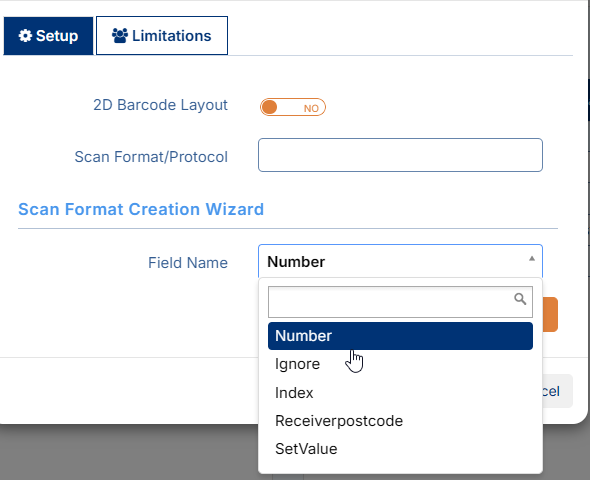
Follow the prompts laid out by the wizard (builder) and continue until the desired format is achieved.
Follow the prompts laid out by the wizard (builder) and continue until the desired format is achieved.
Additional setup help can be found by clicking here.
FAQs
Q: What happens to any scans done by my staff that do not match to a consignment?
Unmatched scans done by users of an account will appear under the Unknown Scans page: Unknown Scans
Q: Can I retrigger existing Unknown Scans to attach to consignments?
Yes, once a new Barcode Format rule is implemented, existing Uknown Scans can be 're-triggered' for the system to do a re-check to see if they are not applicable for matching to any consignments. Details on this can also be found in the Unknown Scans link.
Related Articles + Videos
Please see below links that provide more information on the content of this help article:
Related Articles
Onboarding Hub - Step 9 Scan Tags [add later/phase 2]
Setup Your Scan Tags This article explains how to configure Scan Tags and details their purpose. Page URL: Freight Scan Overrides Dictionary List How To To begin, navigate to one of the above Page URLs which are located under either Configuration > ...Onboarding Hub - Step 15 Driver Alerts [add later/phase 2]
Mobile Driver Alerts This article explains how to configure mobile alerts and their use in Transvirtual. Page URL: Mobile Alerts How To To begin, navigate to the above Page URL which is located under Configuration > General > Mobile Driver Alerts: ...Onboarding Hub - Step 16 Customer Notifications [to complicated for new users replacing with simple option - leave to phase 2]
Customer Tracking Notifications (email/sms) This article outlines the setup of three common export rules used to notify customers of delivery updates: a status export for On Delivery notifications, a status export for Delivered notifications, and a ...Onboarding Hub - Step 30 Customer Tracking Options
Tracking Consignment for Customers This article will explain how to configure tracking notifications for customers. Page URL: Export Consignment Status Updates Export PODs How To This is largely explained in the workflows listed here: Link Further ...Onboarding Hub - Step 21 and 22 Transport Integrations
Transport Integrations (EDI + API) This article provides a list of common integrations previously requested and implemented for Transvirtual account holders. How To EDI Integration EDI integrations, which use Transvirtual’s Electronic Data ...