Onboarding Hub Content - Step 1
General Options
This article explains the recommended settings to enable when creating a new Transvirtual account.
Page URL:
How To
To begin, navigate to the above Page URL which is located under Configuration > General > Global Setup > General Tab:
This section of the system lists a variety of global settings that can be setup to apply to all users/customers within the Transvirtual account.
The settings Transvirtual recommend will vary slightly depending on exact use case but the below are ones that are recommended for the majority of accounts, regardless of business type.
The settings Transvirtual recommend will vary slightly depending on exact use case but the below are ones that are recommended for the majority of accounts, regardless of business type.
Time zone
Account time zone should be set in accordance with where the business operates/mainly operates from.
This is important as time zones affect a variety of things throughout Transvirtual - scan/status/POD timestamps, etc.
Country
Account country should be set in accordance with where the business operates/mainly operates from.
This is important as the country will dictate what suburb listing users of the account see when creating consignments/zone lists, etc.
This is important as the country will dictate what suburb listing users of the account see when creating consignments/zone lists, etc.
Load via Item Scanning
This setting is important for businesses whose staff scan freight and may not be relevant for business types that do not require freight scanning.
Email Address
The Email Address is important as it serves as a 'default' email to be used when no other emails exist.
Email Address Password Reset
This is a default email to be used when no other email can be found for a user requesting a password reset - i.e. a staff member requests a password reset but does not have an email listed against their staff card.
FAQs
Q: How can I tell what a setting does if it isn’t documented in this help article?
Each setting listed in this section of Transvirtual has a question mark icon adjacent:
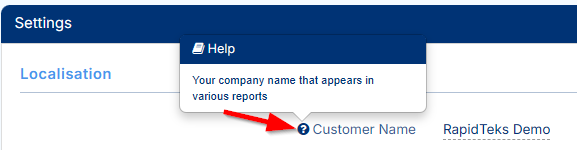
Clicking this icon will bring up a popup which details what that setting does/is used for.
Clicking this icon will bring up a popup which details what that setting does/is used for.
Related Articles + Videos
Please see below links that provide more information on the content of this help article:
Related Articles
Onboarding Hub Content - Step 3
Adding your Company Logo This article explains how to add your Company Logo which is used for the customer-facing portal (customer login area), Consignment Note templates, Consignment Label templates, Invoice reports and other system generated ...Onboarding Hub Content - Step 2
Adding Your Contact Details This article explains how to add contact details to a new Transvirtual account. Page URL: Settings How To To begin, navigate to the above Page URL which is located under Configuration > General > Global Setup > Contact ...Onboarding Hub Content - Step 4
Personalize Consignment Numbers This article explains how to add a prefix to consignment numbers in a Transvirtual account and outlines why this is recommended. Page URL: Settings How To To begin, navigate to the above Page URL which is located under ...Onboarding Hub Content - Step 5
Setting up Headports This article explains how to setup headports in an account and why they are important for use in Transvirtual. Page URL: Zone List Directory How To To begin, navigate to the above Page URL which is located under Configuration > ...Onboarding Hub Content - Step 19
Description List This article will explain how to configure Description Lists to be used upon consignment creation. Page URL: Settings How To To begin, navigate to the above Page URL which is located under Configuration > General > Global Setup > ...